
How to Scan a QR Code: Any Phone, No App, Even From a Screenshot
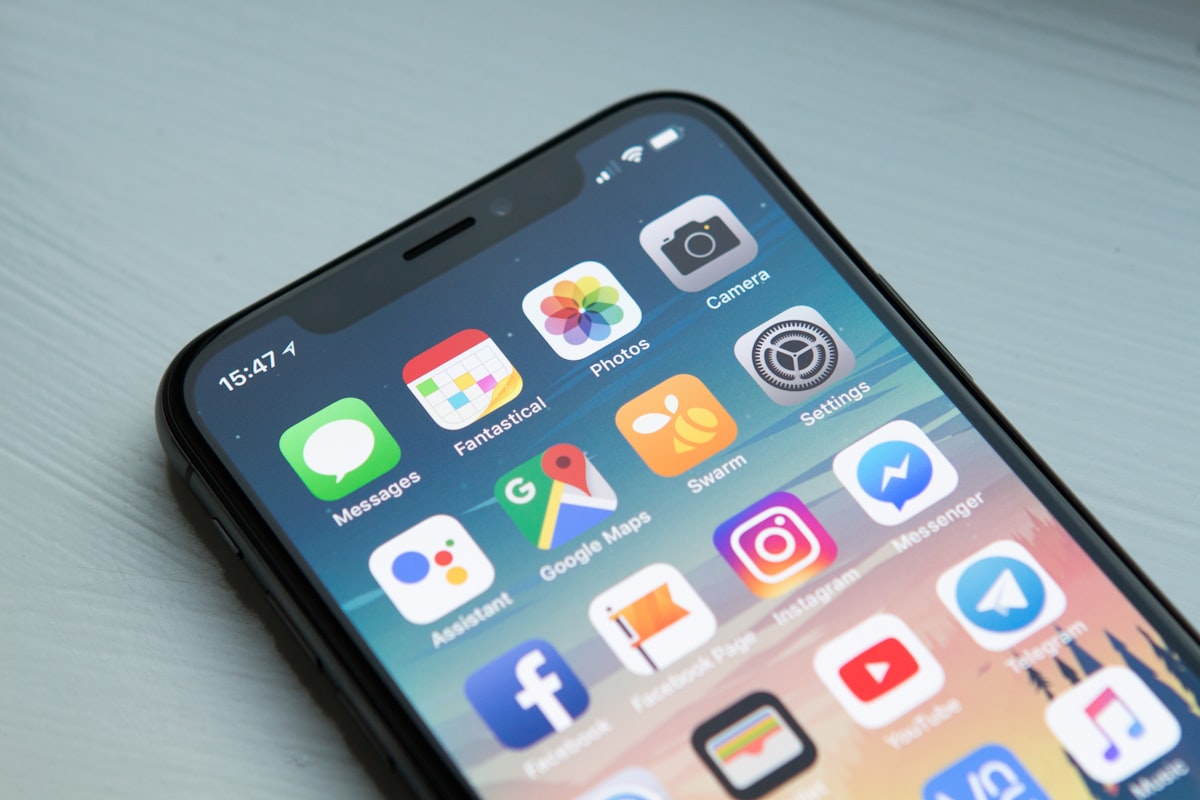
You almost certainly do not need an app. Every phone made in the last several years reads a QR code with the camera it shipped with, and it has for a long time — every iPhone since iOS 11 and every Android phone since Android 8, which is most of a decade. The reason people still search for how to do it is that the built-in scanner is invisible until it works. There is no button, nothing says "scanning", and when it does not work, nothing tells you why.
So this is the whole thing in one place: how to scan with what you already have, on a phone, from a screenshot, and on a computer — and then the part that actually matters, which is what to do when a code will not read.
The short answer: point the camera at it and wait
Open the ordinary camera app. Not a scanner tucked inside some other app, not a browser — the camera you take photos with. Hold the phone steady with the whole code in the frame, somewhere between a hand's length and an arm's length away, and do not press the shutter. Within a second a small banner or notification appears with the destination in it. Tap that, and it opens.
That pause between reading the code and opening the link is deliberate, and it is the most useful thing the scanner does. The banner shows you where the code goes before you go there, which is the entire defence against a bad one — are QR codes safe covers what to read in it and the ten seconds it takes.
If no banner appears, jump to when it will not scan. It is nearly always one of the same six things.
On an iPhone
- The Camera app. Rear camera, normal Photo mode. Frame the code and a notification drops down from the top with the link; tap it to open in Safari. If nothing appears, check Settings → Camera and make sure Scan QR Codes is switched on — it is on by default, but it is the first thing to rule out.
- The Code Scanner control. Recent versions of iOS also have a dedicated scanner you can add to Control Center (Settings → Control Center, add Code Scanner). It does the same job as the camera, but opens the result in its own in-app browser and does not save anything to your photos. Useful when the camera is being slow to notice a code.
- From a screenshot or a saved image. Open it in Photos. On recent versions of iOS the code is recognised in the picture — touch and hold on the code itself and the link is offered. If your version does not do this, the Google app or Google Photos will read a code out of any image using Lens.
On Android
Android phones vary more, because each manufacturer ships its own camera app, but the routes are the same three.
- The camera app. Most read codes directly in the normal photo mode and show a link at the bottom of the screen. Some — Samsung's, for one — have a Scan QR codes switch in the camera's settings that has to be on. If your camera shows nothing at all when pointed at a code, that switch is the first place to look.
- Google Lens. Available inside the Google app, inside Google Photos, and as a mode in many camera apps. Lens reads a code from the live camera or from any image already on the phone, and it is more tolerant of poor codes than most camera apps — if the camera will not read a slightly damaged or low-contrast code, Lens frequently will.
- The Quick Settings tile. Recent versions of Android include a QR code scanner tile — swipe down from the top of the screen twice, and if it is not already there, edit the tiles to add it. It opens straight into a scanner with no camera app involved.
From a screenshot: open the image in Google Photos and tap Lens, or, if the code is in a web page you are looking at in Chrome, touch and hold the image and choose to search it with Google. The link inside the code comes back as a result.
A code that is on your own phone's screen
This is the one that genuinely cannot be done the obvious way: a phone cannot point its camera at itself. It comes up constantly — a code in a message, in an email, on a website, in somebody's social post. You have three options, in order of how well they work:
- Screenshot it, then read the screenshot with Photos (iPhone), Google Photos and Lens (Android), or the Google app on either. This is the reliable route.
- Touch and hold the image in the browser or the app. Some browsers and some apps offer to read the code or search the image; many do not, and it is worth one try before falling back to a screenshot.
- Use a second device. If someone else is in the room, their phone reads your screen perfectly well.
If you are on the other side of this — putting a QR code into something people will read on a phone — this is the reason it does not work. A code in a social post or an email is being shown on the one device that cannot scan it. QR codes for social media covers where a code should live instead.
On a laptop or desktop
Computers are worse at this than phones, but there are three honest routes.
- Hold your phone up to the monitor. This works, and it is usually the fastest answer. Screens scan fine; if the code shimmers in the camera, move back a few centimetres and let it refocus.
- Search the image. If the code is on a web page, right-click it in Chrome and search the image with Google — Lens decodes it and shows the link as a result. If it is in a file, open the image in the browser first. On a Mac there is no built-in decoder, so this is the practical route; recent versions of the Windows Camera app include a barcode mode that reads a code held up to the webcam.
- An online decoder — carefully. There are websites that will read a code from an uploaded image. Understand what you are doing: you are sending that image to somebody. Fine for a poster or a menu. Not fine for a boarding pass, a ticket, a payment code or anything else that identifies you, because the code is the information.
When it will not scan
This is the section that should exist and mostly does not. A code that will not read is nearly always one of these, roughly in the order they happen.
You are too close
The most common one. Phone cameras cannot focus on something a few centimetres away, so the code is a blur and the phone sees nothing. Move back to at least a hand's length and hold still for a second while it refocuses. The working rule is that a code reads from up to about ten times its own width, so a 2cm code is comfortable at 10–20cm and hopeless at 3cm.
You are too far
The same rule the other way. A small code across a room, a code at the bottom of a poster, a code on a screen from the back of a hall — if it is more than about ten widths away, the modules are too small for the sensor. Walk closer. If you cannot, there is nothing your phone can do about it; that is a printing decision somebody else made, and QR code design that still scans is about exactly that decision.
Glare
Under a spotlight, in sun, or behind glass or a laminated menu, the camera sees the reflection of the light source instead of the pattern. Tilt the phone, or tilt the code, or step to one side so the reflection moves off the pattern. On a shop shelf, this is why a code on a glossy label reads from one angle and not another.
Not enough light — or too much
In a dim room the camera struggles to find the edges. Turn the torch on; most camera apps have it a tap away. The opposite problem is a very bright screen in a dark room, where the white blooms into the black — lower the screen brightness or move back slightly.
Part of the code is out of frame, covered or damaged
The camera needs the whole pattern including the blank margin around it, which is part of the code rather than padding. A thumb over a corner, a fold across the middle, a scuffed sticker, a code that runs off the edge of the frame — all of these stop it. QR codes tolerate a surprising amount of damage, but not damage to the three big squares in the corners, which are how the camera finds it in the first place. Reframe so the whole thing is in shot with space around it.
The code is light-on-dark
A white pattern on a black background looks fine to a person and is out of spec for a scanner. Plenty of camera apps will not read it at all. If you hit one, Google Lens is usually more forgiving; failing that, some cameras will read it if you invert the colours in a screenshot. If you are the one making codes, do not do this to people.
The scanner is switched off, or you are in the wrong mode
The setting in the camera app described above is the usual culprit. Beyond that, some phones only scan in the normal Photo mode — not Portrait, not Video, not a filter — and only with the rear camera. Get back to plain Photo and try again.
It scanned, but the page will not load
Then the code is fine and your connection is not. Decoding happens on the phone and needs no network; loading the destination needs one, and inside a concrete venue, a basement or a packed hall there frequently is not one. QR codes at events is largely about this. Nothing about the code is wrong, and rescanning it will not help.
It scanned, but the destination is not what the sign says
Stop. A code printed as "scan for the menu" that shows a link to something unrelated is either a mistake or a sticker somebody put over the real one, and the second is common enough to check for — run a fingernail around its edge. Do not enter anything on a page you arrived at that way. Are QR codes safe has the full check and what to do if you already tapped through.
Do you need a scanner app?
For almost everyone, no, and the built-in camera is genuinely the better tool: it shows the destination before opening it, it asks for no permissions beyond the camera it already has, and it carries no adverts. Comparisons of free scanner apps are mostly comparisons of the same open-source decoder wrapped in different amounts of advertising.
There are a few honest reasons someone might still want one:
- An old phone whose camera predates native scanning — check the setting first, because "old" is older than most people think.
- Scanning ordinary product barcodes rather than QR codes, which most cameras do not do.
- A job that involves scanning many codes in a row and keeping a history or exporting a list, which a camera app will not do.
If you install one, hold it to three standards. It must show you the URL before it opens it — an app that jumps straight to the page has removed the one safety feature that matters. It should ask for the camera and nothing else; a scanner has no business in your contacts or messages. And prefer the ones made by the companies that already make your phone's software — Google Lens, Apple's own Code Scanner — over anything ad-funded. Never type a password into a browser that opened inside a scanner app when you were not expecting a login at all.
What a scan can and cannot do to your phone
Briefly, because it is the anxiety underneath the question: nothing, on its own. A QR code is a picture of some text, almost always a web address. Reading it does not install anything, run anything or change anything. The only risk is where the address goes, which is why the banner exists and why reading it is the whole discipline. That is a five-minute read of its own in are QR codes safe.
If you print codes, this list is your checklist
Everything above is what happens on the far side of a code you made. Read it backwards and it is the test plan: scan your printed code with the built-in camera on a cheap phone — not with a scanner app, which is more forgiving than your customers' cameras — from the distance people will actually be standing, in the light the code will actually live in, on the surface it is actually printed on. Every failure above is invisible on a monitor. On the scanning side the fixes are physical; on the printing side they are decisions, and the design constraints and the small-label version of them are where those decisions live. And if the code is going on a slide or a stream rather than paper, the distance and the time it stays up change everything — QR codes on screens covers that surface.
The short version
- Use the camera app. Frame the code, do not press anything, tap the banner. No app needed on any phone made in the last several years.
- Read the banner before you tap it. That pause is the safety feature.
- Own screen? Screenshot it and read the screenshot with Photos, Google Photos or Lens.
- Laptop? Hold your phone up to it, or search the image with Google.
- Will not scan? Move back a hand's length first. Then check glare, light, framing, light-on-dark, and the camera's QR setting.
- Scanned but nothing loads? That is the network, not the code.
- Destination does not match the sign? Do not enter anything. Check for a sticker.